
When you track down an email problem together with our support team, or when the steps of a guide don’t match what you see on your screen, the first question is usually which Outlook you are using exactly. On Windows, two separate programs go by that name today, the new Outlook and the classic Outlook, and on a Mac there is Outlook for Mac. This article shows you how to tell which one you have and where to find its version number.
We tested the steps in November 2026 on Windows 11 (26H2) with version 1.2026.1013 of the new Outlook and version 2610 of the Microsoft 365 classic Outlook, and on macOS Tahoe 26.6 with Outlook for Mac 16.115, using the same test mailbox on our own-domain email hosting in all three programs.
Which Outlook are you using?
-
New Outlook for Windows: the free email program built into Windows 11 (the successor of the old Mail and Calendar app), which can also be chosen with a Microsoft 365 subscription. The File tab opens a small drop-down menu, and the Help tab has a Go to classic Outlook button.

-
Classic Outlook: part of the Microsoft 365 (formerly Office 365) subscription and of the purchased Office and Outlook 2016, 2019, 2021 and 2024 editions. The File tab opens a full page (the Info page), and the Try the new Outlook toggle is shown in the top right corner.

-
Outlook for Mac: there is a single Outlook app on the Mac, which can also be used for free, without a subscription. The Legacy Outlook item of the Outlook menu switches back to the earlier interface.
Version of the new Outlook
-
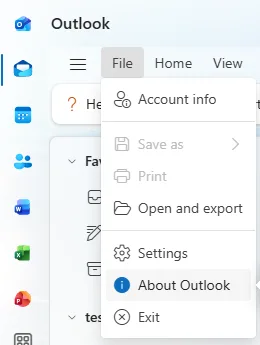
Click the File tab, then About Outlook.
-
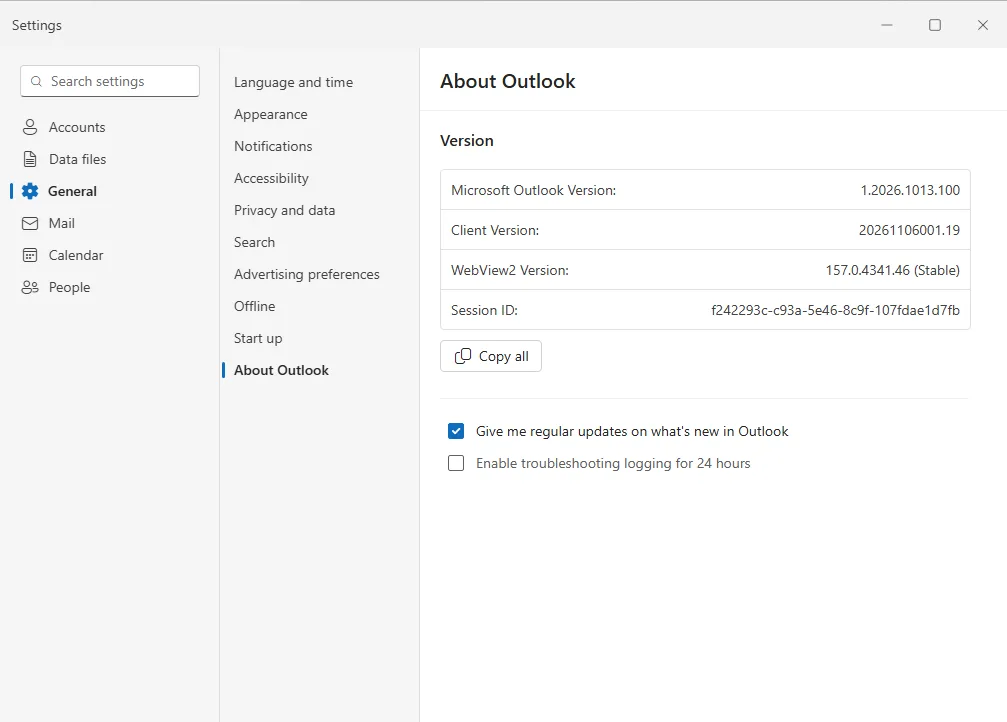
The Settings window opens at General › About Outlook. Microsoft Outlook Version is the version of the app (1.2026.1013.100 in the screenshot), Client Version that of the program’s interface (20261106001.19 in the screenshot). The Copy all button copies both to the clipboard, so you can simply paste them into a ticket.
Version of the classic Outlook
- Click the File tab, then Office Account at the bottom left.
-
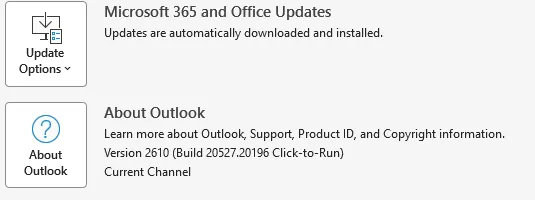
Under Product Information you can read the name of the product: with a Microsoft 365 subscription, for example, Microsoft 365 Apps for enterprise, with a purchased Office the year of the edition (2021, 2024). Next to the About Outlook button you can see the version and build number (Version 2610 (Build 20527.20196 Click-to-Run) in the screenshot), and below it the update channel (Current Channel). The box with the product name is not in the screenshot, as our test machine had no activated licence.
-
Click the About Outlook button. The first line of the window that opens shows the full version, ending with whether your Outlook is 32-bit or 64-bit. You need this when you install an add-in (a COM add-in), as it has to match your Outlook.

16.0 is the internal version number of every current classic Outlook, from 2016 to 2024 and Microsoft 365, so you find out the edition’s year from the product name, not from this number. Outlook 2010 has no Office Account item yet: there you find the version on the right of the File › Help page.
Outlook for Mac
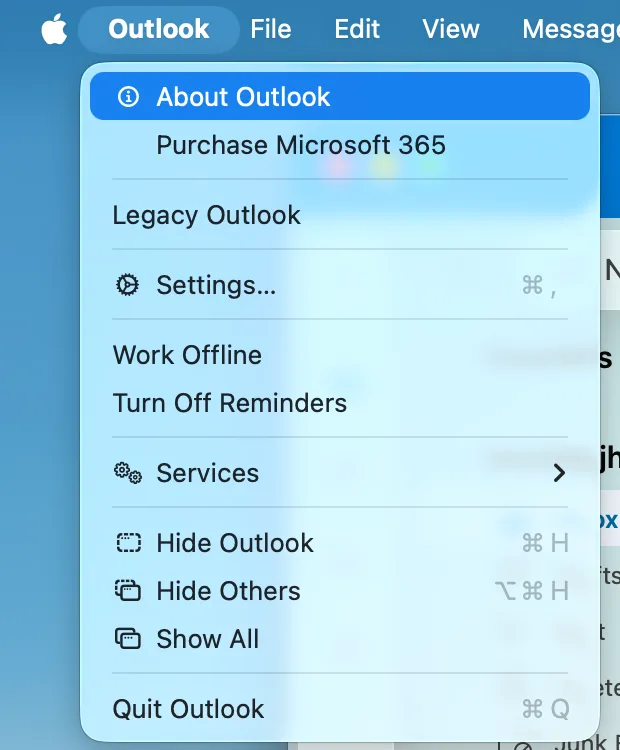
- Open Outlook and click the Outlook menu in the menu bar (next to the Apple logo). If you don’t see the menu bar, move the pointer to the top of the screen.
-
Choose About Outlook.
-
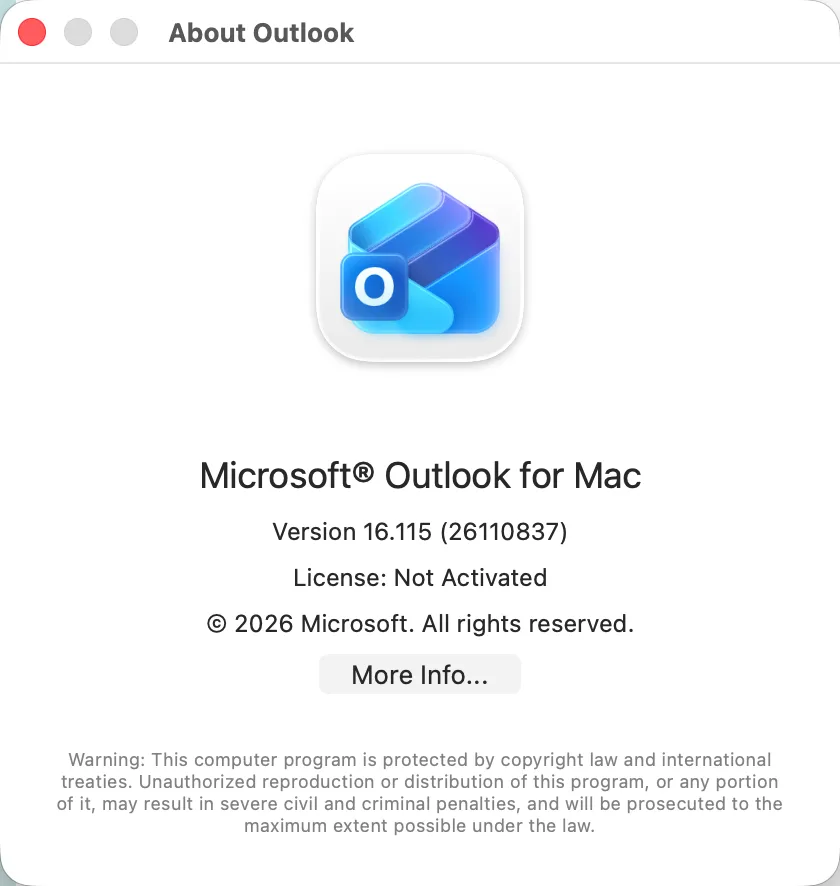
The Version line of the window that opens shows the version and build (16.115 (26110837) in the screenshot). The License line shows the subscription; in our test, used for free without a subscription, it said Not Activated.
How long does your Outlook get updates?
Microsoft fixes the purchased (perpetual licence) Office editions until a fixed date. After that the program keeps working, but it no longer gets security updates, and for an email program that opens messages and attachments from strangers every day this is a real risk.
| Outlook | Security updates |
|---|---|
| Outlook 2013 and earlier | until 11 April 2023 (ended) |
| Outlook 2016 and 2019 | until 14 October 2025 (ended) |
| Outlook 2021 (Office 2021, Office LTSC 2021) | until 13 October 2026 (ended) |
| Outlook 2024 (Office 2024, Office LTSC 2024) | until 9 October 2029 |
| Classic Outlook with a Microsoft 365 subscription | ongoing, Microsoft supports it until at least 2029 |
| New Outlook for Windows and Outlook for Mac | ongoing, with the current version |
If you use an edition that is out of support, switch to the new Outlook (free on Windows 11), to Microsoft 365 or Outlook 2024, or to another email program such as Thunderbird. Setting up your mailbox in the new Outlook is covered by the guide to the Outlook IMAP settings, on a Mac by setting up Apple Mail.
When you report an email problem, tell us in the ticket which Outlook you use (new, classic or Mac) and its version number as well: this helps us find the cause faster.
