
Many of us have more than one email address these days: one for work, a personal one, perhaps one for an online shop or a club. Signing in to each of them separately is slow and inconvenient. With an email client you can manage all your business mailboxes in one window: you see your incoming mail in one place and can reply from any of your addresses.
In this article we compare the best-known desktop email clients. The screenshots were taken with the same two test mailboxes (one on cPanel hosting, one on web hosting), so you can see how two accounts fit into each program.
Email client or webmail?
Webmail (Roundcube on our servers) runs in your browser, needs no installation and lets you reach your mail from any computer; signing in is explained in the article Accessing cPanel and webmail. It only shows one mailbox at a time, though.
An email client is an application on your own computer. It handles several accounts at once with a unified inbox, notifies you of new mail, lets you read messages already downloaded without an internet connection, and searches faster because it runs on your machine.
Where your messages are stored depends on the protocol. With IMAP the messages stay on the server and the program only keeps a copy, so your phone, your laptop and webmail all show the same thing. With POP3 the program downloads the messages and, by default, deletes them from the server. In most cases IMAP is the right choice; the article POP or IMAP: which protocol should I choose? explains the difference in detail.
In short: which one should you choose?
| Program | System | Free? |
|---|---|---|
| Thunderbird | Windows, macOS, Linux, Android | Yes, without limits |
| New Outlook | Windows | Yes, with ads |
| Outlook for Mac | macOS | Yes |
| Classic Outlook | Windows | No (Microsoft 365 or Office) |
| Apple Mail | macOS, iOS, iPadOS | Yes, part of the system |
| eM Client | Windows, macOS | Up to 2 accounts, home use only |
| Mailspring | Windows, macOS, Linux | Yes, Pro features are paid |
| Mailbird | Windows | Up to 1 account |
- If you are looking for a free, ad-free program that works the same on every system, choose Thunderbird.
- On a Mac, Apple Mail is the simplest: it is already installed and works well with your iPhone.
- If your company runs Microsoft 365 or your colleagues use Outlook, stay with Outlook.
- You may not use the free version of eM Client for business email; business use needs a paid licence.
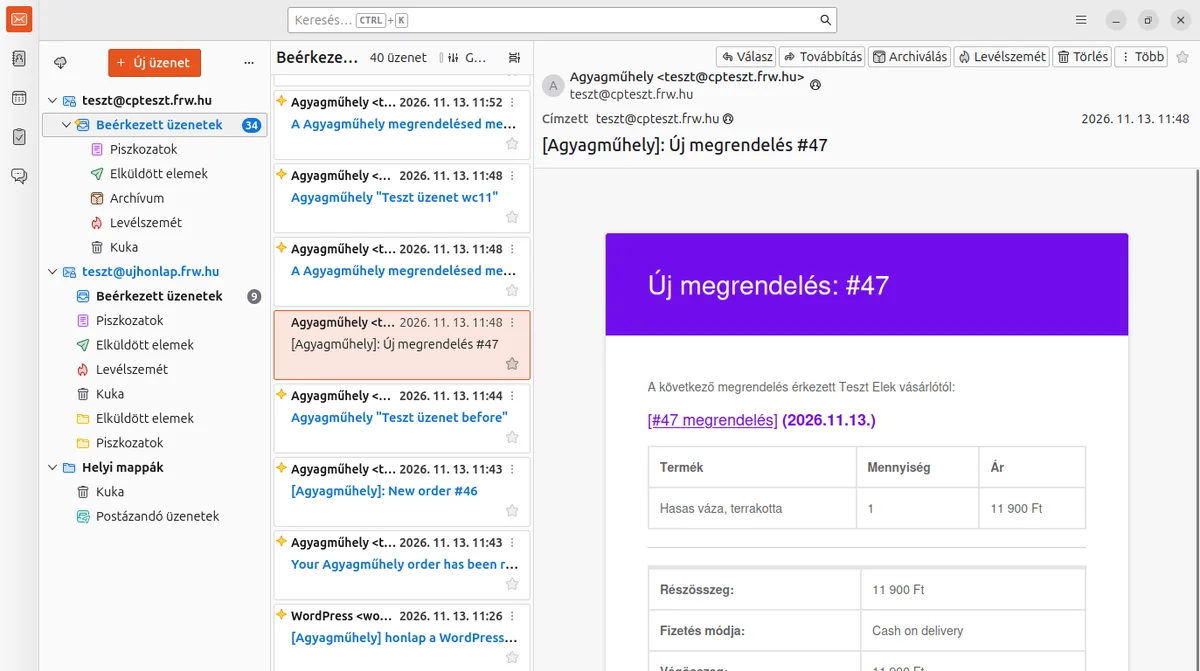
Mozilla Thunderbird
Thunderbird is one of the oldest and best-known email clients: Mozilla released it in 2003 and it has been developed continuously ever since. It is free and open source and funded by donations, so it has no ads and no limit on the number of accounts. You can download it for Windows, macOS and Linux from thunderbird.net, and for Android from Google Play; the iPhone version is still in development.
To set up an account you usually only need your name, email address and password: Thunderbird looks up the server details itself. Our guide Setting up Thunderbird for IMAP walks you through it step by step.
Besides email it handles a calendar, an address book and a task list, warns you if you mention an attachment but forgot to attach it, and with its built-in OpenPGP and S/MIME support you can send encrypted email too. Add-ons extend it further.
Microsoft Outlook
Outlook is the most widespread email client in companies, but it now comes in several versions, and they do not all work the same way.
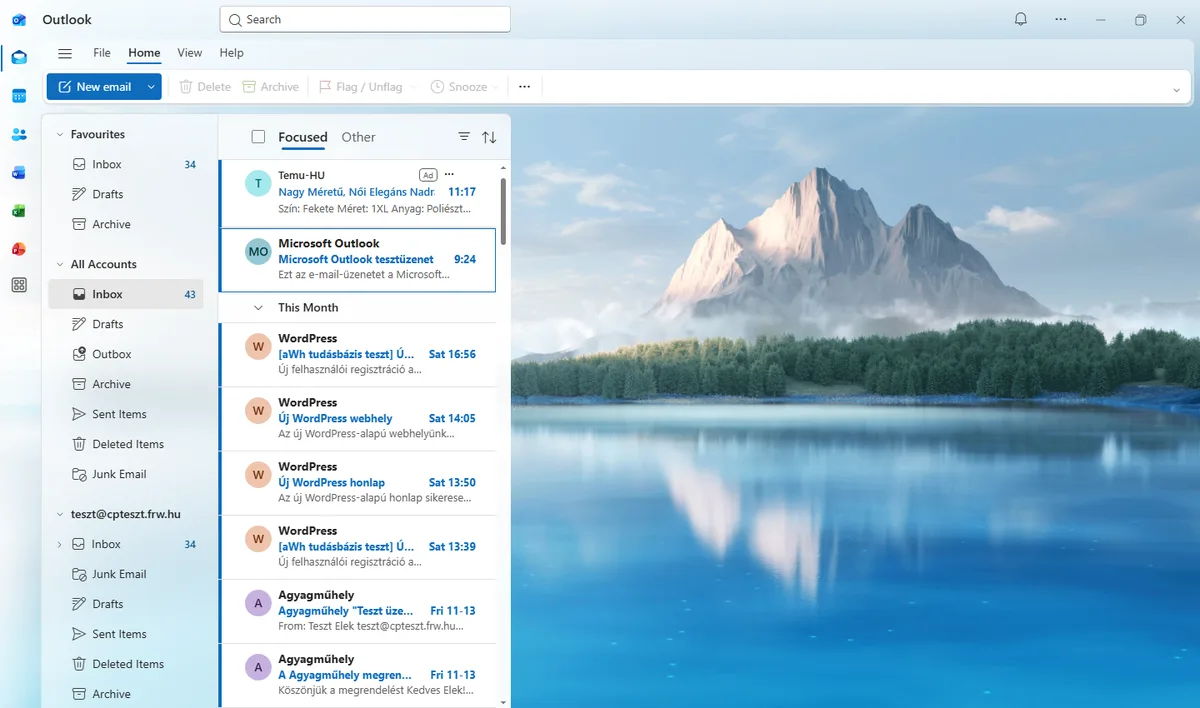
- New Outlook (Windows): free, part of Windows 11 and installable on Windows 10. You can add an IMAP account, but only with your mail syncing through the Microsoft cloud. Without a Microsoft 365 subscription, ads marked Ad appear in the message list. The article Setting up an IMAP account in the new Outlook shows how to set it up.
- Classic Outlook (Windows): part of Microsoft 365 or Office, paid. It connects directly to the mail server and is supported until at least 2029.
- Outlook for Mac: free to use on a Mac, without a subscription.
The article Finding out your Outlook version tells you which Outlook you are using. If you do not want your mail to sync through the Microsoft cloud, choose classic Outlook or another program instead.
Apple Mail
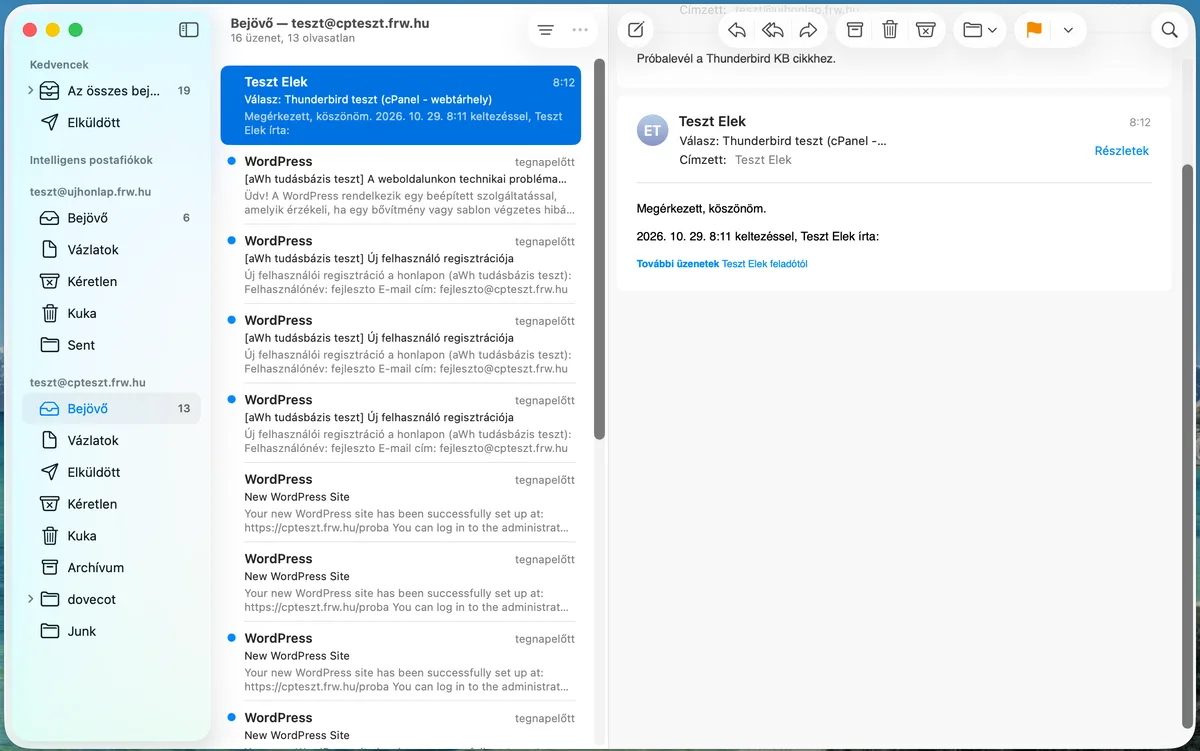
Mail (Apple Mail) comes with every Mac, iPhone and iPad and is free. If you use Apple devices, it is the obvious choice. It is simple and fast, and Mail Privacy Protection hides from senders when and where you opened their message.
On a Mac the article Setting up IMAP in Apple Mail on a Mac helps, on an iPhone Setting up email in the iPhone and Android Mail apps. It is not available on Windows or Linux.
eM Client
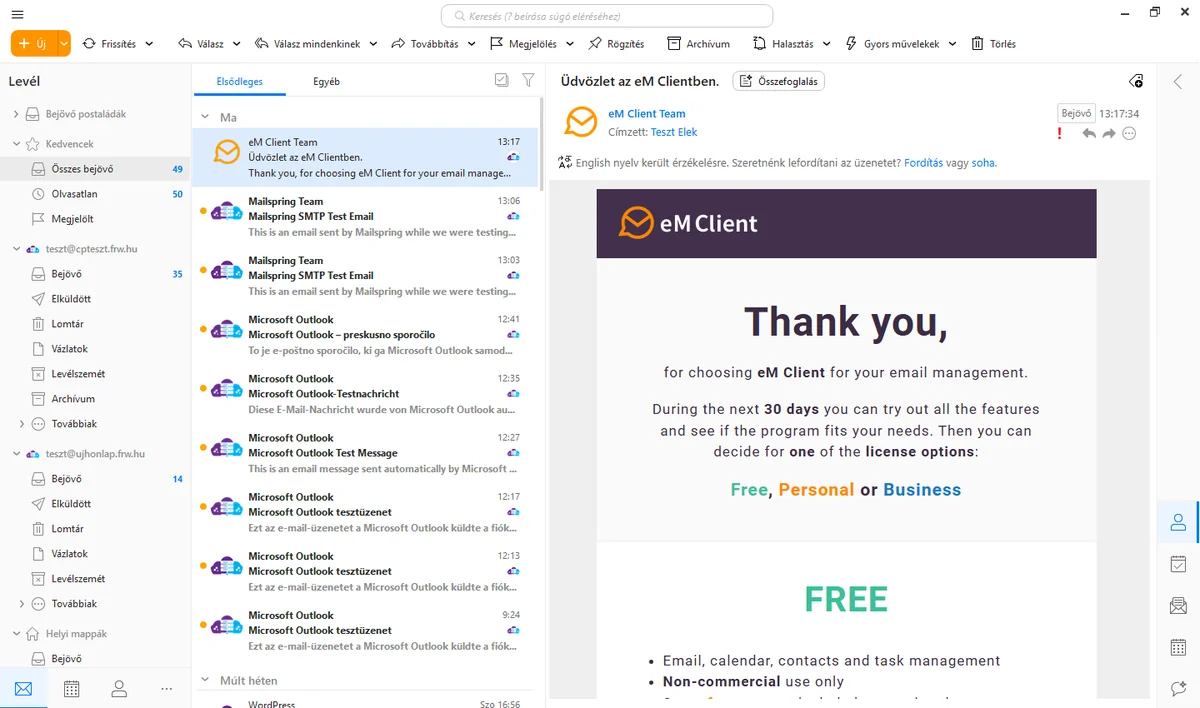
eM Client is a Czech-made program for Windows and macOS that handles email, calendar, contacts, tasks and notes in one window. Many people choose it because its interface resembles Outlook’s, yet it does not sync your mail through an outside cloud. PGP and S/MIME encryption are included even in the free version; the AI features (writing, summaries) are paid add-ons.
After installing it you can try every feature for 30 days, then you have to choose a licence. The free licence requires registration, handles at most two email accounts on one computer and is for home, non-commercial use only. For business email, or if you have more than two accounts, you need a paid licence (yearly or one-off). For phones eM Client also offers free iOS and Android apps.
Mailspring
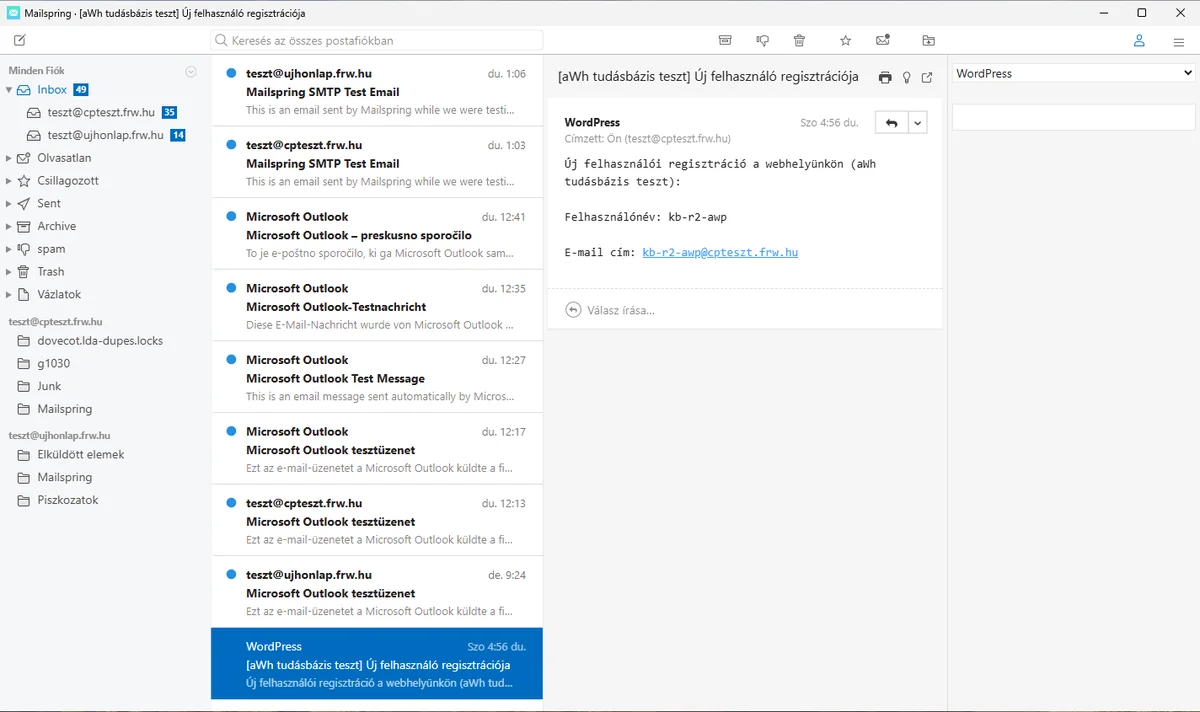
Mailspring is an open-source email client with a clean, modern interface for Windows, macOS and Linux. The free version handles several accounts with a unified inbox, fast search and a conversation view. On first start it asks you to create a Mailspring ID (an account), but you can skip this; the program does not send your passwords to its own servers.
The Pro subscription (USD 8 a month) adds read receipts, link tracking, scheduled sending, reminders, templates and contact profiles; with a Mailspring ID you can try some of them a few times a week in the free version too.
Mailbird
Mailbird is an email client for Windows that also brings many outside apps (calendars, messengers) into its interface. The free version handles only one email account; more accounts need a paid Premium licence. The program is in transition: the Windows app Mailbird 3 only gets minor updates, and the new Mailbird Next, also made for Mac and phones, is still in early access. If you are choosing a program now, you are better off picking one of the above.
On your phone
On a phone you do not need to install a separate app: the iPhone Mail app and the Gmail app both handle your business mailbox. Thunderbird is also available for Android if you want the same program as on your computer. The guides:
- Setting up email in the iPhone and Android Mail apps
- Setting up email on Android in the Gmail app
- Setting up Thunderbird on Android
- Using webmail on your phone, if you do not want to install anything
Whichever you choose
Every program needs the same three things for the setup: your email address, your password and the name of the mail server. You will find the server and the ports in your hosting control panel; the guides above show you where. Use an encrypted connection (IMAP: 993, SMTP: 465 or 587), and if a program only offers an unencrypted connection, do not accept it.
